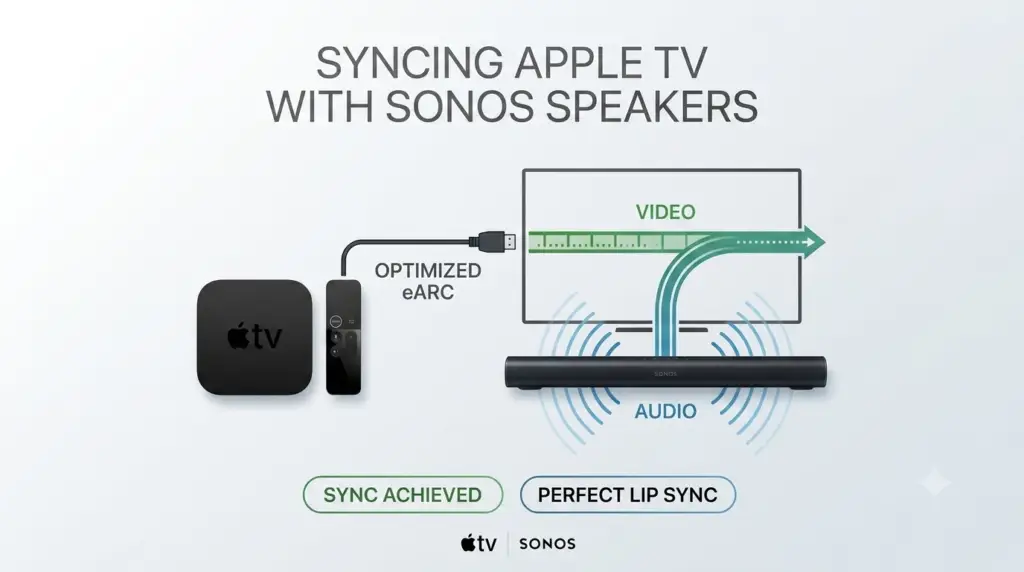
Few things break the immersive magic of a home theater faster than a classic lip-sync delay. You sit down, dim the lights, sink into the couch, and fire up a cinematic blockbuster or the latest prestige streaming drama. Everything looks stunning in crisp 4K, but within minutes, a harsh reality sets in: the dialogue is hitting your ears a fraction of a second after the actors’ lips move.
When you pair the premium streaming interface of an Apple TV with the high-end sound architecture of a Sonos speaker ecosystem, this frustrating offset is an all-too-common headache. Because both systems rely on heavy digital processing, complex audio formats like Dolby Atmos, and smart wireless handshakes, a bottleneck anywhere in the hardware chain will throw your audio and video completely out of alignment.
The good news? You don’t have to live with a perpetual kung-fu movie dub effect. This comprehensive, real-world troubleshooting guide will walk you through exactly how to diagnose, recalibrate, and permanently fix audio sync issues between your Apple TV and Sonos setup.
The Root Cause: Why Does This Lag Happen?
Before diving into settings, it helps to understand the engineering bottleneck. Digital audio signals require processing time. When your Apple TV decodes a heavy, multi-channel sound file, it sends the video signal to your television screen and the audio signal down to your Sonos soundbar (like a Sonos Arc or Beam).
If your television is forced to process complex visual data (like Dolby Vision or HDR10+) while simultaneously routing high-bandwidth audio pass-through down an HDMI cable, a microsecond discrepancy is introduced. Because audio typically processes much faster than high-end video, your TV intentionally holds back the audio to let the picture catch up. When the TV overcalculates this hold-back, you get a noticeable audio lag.

Step 1: Use Apple TV’s Secret Weapon: Wireless Audio Sync
Apple engineers actually anticipated this exact problem and built a brilliant, hidden calibration tool directly into tvOS. The Wireless Audio Sync feature utilizes your iPhone’s microphone to listen to your Sonos speakers while the Apple TV plays a series of tone bursts, calculating the exact millisecond delay down to the pixel.
How to Run Wireless Audio Sync:
- Turn on your TV, Apple TV, and Sonos system.
- Turn on your TV, Apple TV, and Sonos system.
- Navigate to Video and Audio, then scroll down to the bottom under the Calibration section.
- Select Wireless Audio Sync.
- Bring your unlocked iPhone close to your Apple TV. A prompt will instantly pop up on your phone screen asking to start the calibration.
- Bring your unlocked iPhone close to your Apple TV. A prompt will instantly pop up on your phone screen asking to start the calibration.
Once completed, your Apple TV will permanently offset its video output to perfectly match the processing speed of your Sonos system.
The Golden Rule: You must repeat this process for every video format you regularly use. If your Apple TV switches between 4K HDR, 4K SDR, and Dolby Vision depending on the content, change your output to each format inside the settings menu manually and run the Wireless Audio Sync tool individually for each one.
Step 2: Fine-Tune the Audio Delay in the Sonos App
If the Apple TV’s built-in system calibration doesn’t fully close the gap—or if you notice the audio is actually arriving before the picture—you need to adjust the physical playback speed directly within the Sonos ecosystem.
How to Adjust TV Dialog Sync:
- Open the official Sonos App on your phone.
- Tap the Settings gear icon (or your System tab).
- Select the specific room where your home theater soundbar (Arc, Beam, or Amp) is configured.
- Scroll down to the Home Theater subsection and select TV Dialog Sync.
- You will see a dedicated slider control. Dragging the slider to the right introduces a slight delay to the audio stream, giving the video on your television screen extra time to catch up.
Pro Tip: Play a live, dialogue-heavy video on your Apple TV while adjusting this slider in real-time. Keep tweaking until the mouth movements perfectly align with the spoken words.
Step 3: Match the Audio Formats (Linear PCM vs. Dolby Atmos)
One of the primary drivers of processing lag is format mismatching. By default, Apple TV decodes all audio internally and outputs it as uncompressed Linear PCM (LPCM) or Dolby Atmos. While LPCM offers incredible audio fidelity, many older television sets struggle to pass this high-bandwidth format through their HDMI ports quickly, creating a massive audio buffer delay.
The Fix: Force Apple TV to Change Formats
If you are plagued by an unfixable, permanent delay, changing the audio output format to a highly compressed, universal format like Dolby Digital 5.1 will drastically lower the processing load on your television.
- Go to Settings > Video and Audio > Audio Format on your Apple TV.
- Select Change Format and confirm the prompt.
- Switch the setting from Auto to New Format: Dolby Digital 5.1.
While this will technically disable uncompressed LPCM audio, Dolby Digital 5.1 is incredibly efficient and will instantly fix lip-sync errors caused by slow TV processors.
Step 4: Configure Your TV Settings to “Pass Through”
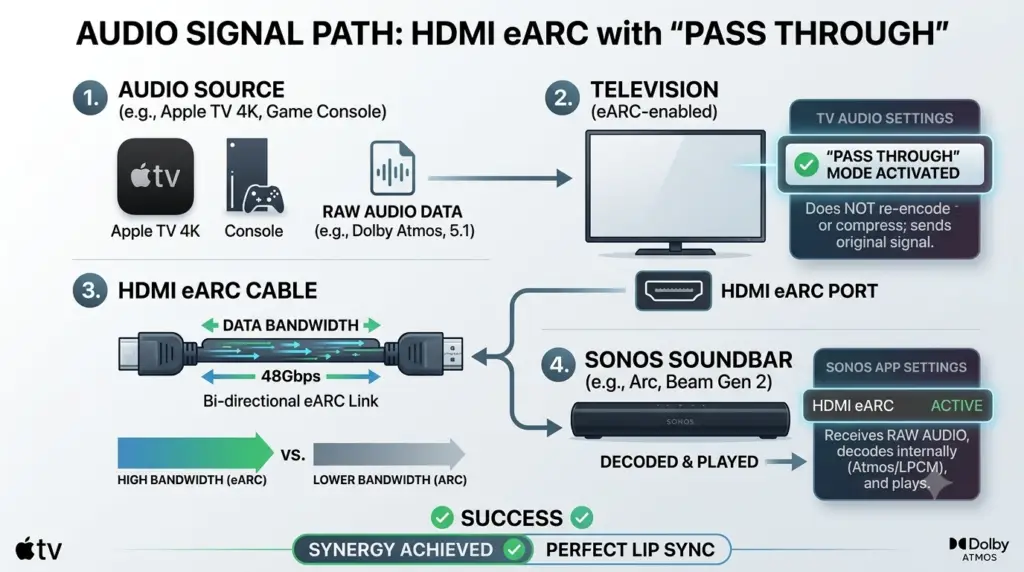
Your television should act as a simple highway, letting the audio pass from the Apple TV straight down to the Sonos speaker without intercepting it. If your TV settings are configured to alter, manipulate, or decode the audio internally, it adds fatal milliseconds to your audio delivery pipeline.
Adjusting Your Television Settings:
Grab your physical television remote control (not the Apple TV remote) and dive into the master system settings menu:
- Digital Audio Out: Look for a setting labeled Digital Audio Output, Audio Processing, or Expert Sound Settings. Change this from Auto or PCM over to Pass Through (sometimes labeled as Bitstream). This tells the TV to hand the audio off to your Sonos soundbar completely untouched.
- eARC Mode: Ensure eARC (Enhanced Audio Return Channel) is toggled to On or Auto. Do not leave it on standard ARC if your TV supports eARC, as standard ARC lacks the modern bandwidth required to process high-end audio formats without stuttering.
Step 5: Power Cycle and Check Cable Integrity
If you have adjusted your software configurations and the delay remains erratic, the problem likely lies in physical hardware handshake errors. High-bandwidth digital content protection (HDCP) can occasionally glitch, causing video and audio synchronization to drift out of alignment over extended viewing periods.
Perform a Full System Reset:
- Unplug the HDMI cables from your Apple TV, your television, and your Sonos soundbar.
- Unplug the power cords for all three devices from the wall outlet.
- Leave everything completely powered down for two full minutes to clear out residual system cache.
- Replug the power cords, then firmly reseat the HDMI cables back into their respective ports.
- Ensure your Sonos soundbar is plugged exclusively into the dedicated port on your TV labeled HDMI ARC or HDMI eARC.
Cable Alert: Ensure you are using high-quality Ultra High Speed HDMI cables (HDMI 2.1) certified for 48Gbps bandwidth. Using cheap, generic, or legacy HDMI cables to connect your Apple TV to a modern 4K TV will create data bottlenecks that systematically throw your audio out of sync.
Final Thoughts
Achieving flawless lip-sync harmony between an Apple TV and Sonos speakers is entirely possible once you eliminate the internal processing bottlenecks. By forcing your television into a clean “Pass Through” mode, utilizing Apple’s smart Wireless Audio Sync microphone calibration tool, and using premium high-speed cabling, you can successfully banish audio lag once and for all. Turn on your favorite movie, sit back, and enjoy perfectly synced, immersive home theater sound!