Whether you want to learn how to stream Windows 10 to LG TV to watch movies or turn your screen into a second workstation, connecting your PC wirelessly is incredibly straightforward. You don’t need any HDMI cables, third-party adapters, or expensive hardware.
Because modern LG Smart TVs run on webOS and feature built-in Miracast (or AirPlay for Apple ecosystems), you can mirror your screen wirelessly in just a few clicks.
Here is a foolproof, step-by-step guide to streaming your Windows 10 desktop to your LG Smart TV via Wi-Fi.
Pre-Requisites: Before You Start
To ensure a seamless, lag-free connection, make sure you check these three quick boxes:
The Same Wi-Fi Network: Both your Windows 10 PC and your LG Smart TV must be connected to the exact same Wi-Fi network. If your router has dual-band Wi-Fi (2.4 GHz and 5 GHz), ensure both devices are on the same band (5 GHz is highly recommended for smoother streaming).
Wi-Fi Turned On: Even if your PC is connected via an Ethernet cable, its Wi-Fi card must be turned on to establish a Miracast (Wi-Fi Direct) connection.
LG TV Ready: Ensure your LG TV is turned on and not stuck in a deep-sleep or energy-saving mode.
Method 1: The Quickest Way (Using Windows Wireless Display)
Windows 10 has a native screening feature called Miracast built right into its Action Center. This is the most efficient way to mirror your entire desktop.
Step 1: Open the Connect Menu on Windows 10
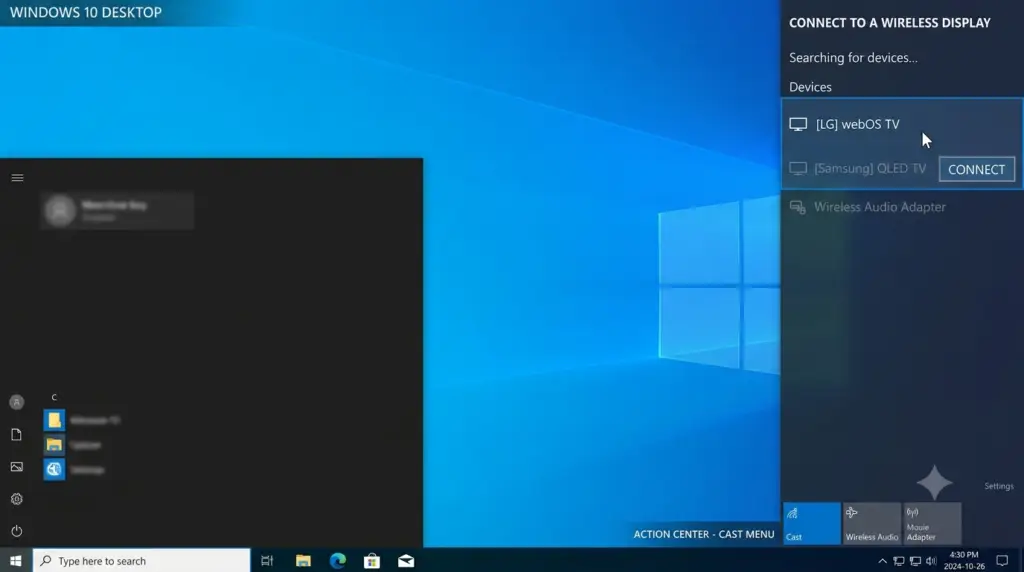
Look at the bottom-right corner of your Windows taskbar. Click on the Action Center icon (the speech bubble icon next to the time) or simply press the keyboard shortcut:
Windows Key + K
Step 2: Select Your LG Smart TV
A sidebar menu titled Connect will slide out on the right side of your screen. Windows will automatically begin scanning for wireless displays. Look for your LG Smart TV (it will usually appear as [LG] webOS TV or a custom name you gave it) and click on it.
Step 3: Accept the Connection on Your TV
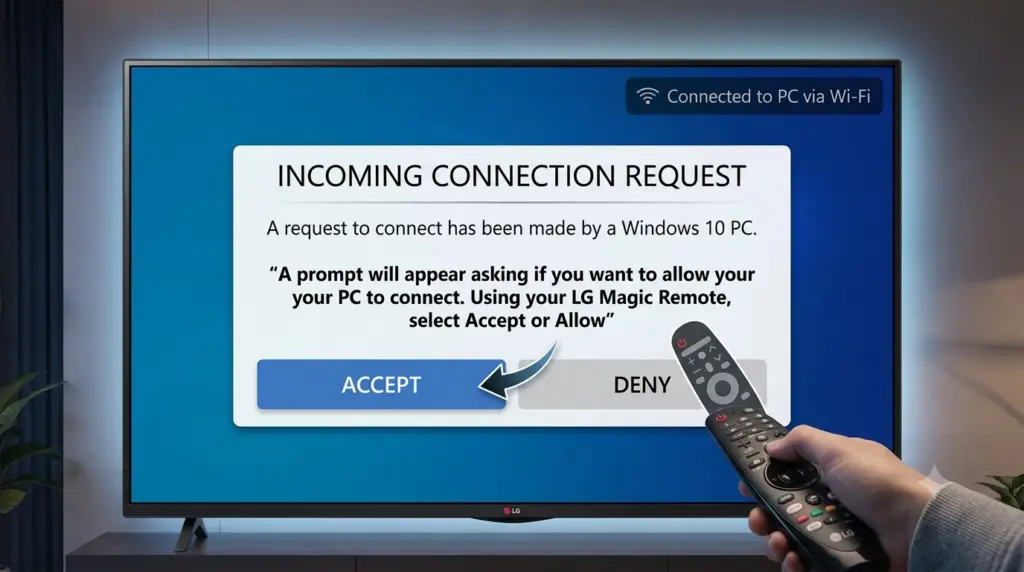
Look at your LG TV screen. A prompt will appear asking if you want to allow your PC to connect. Using your LG Magic Remote, select Accept or Allow.
Step 4: Adjust Your Projection Settings (Optional)
Once connected, you can change how your desktop behaves. Press Windows Key + P to choose your preferred viewing mode:
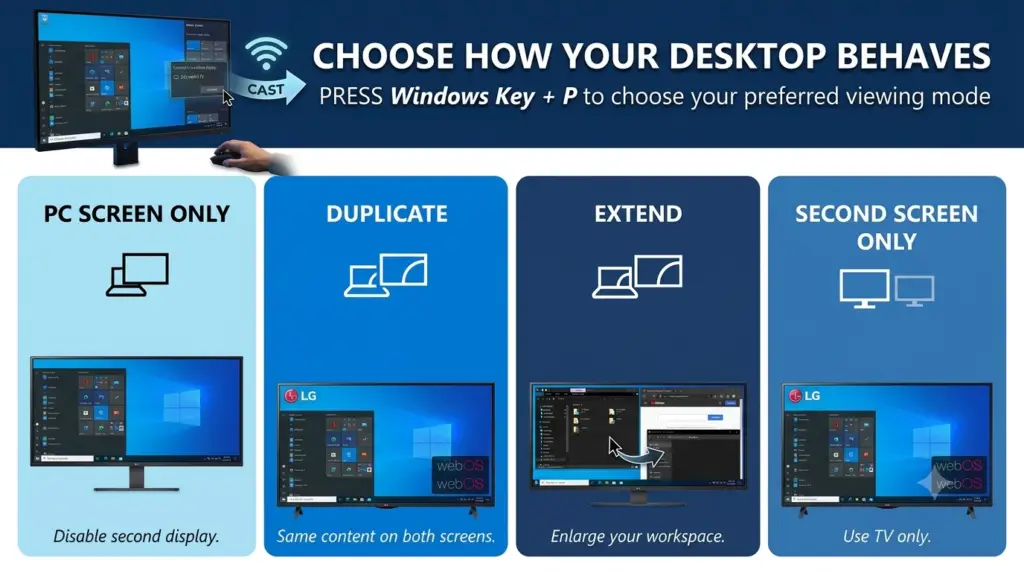
Duplicate: Exactly mirrors your PC screen onto the TV.
Extend: Treats your LG TV as a second monitor, allowing you to drag windows over to it while keeping your PC screen free.
Second Screen Only: Turns off your PC monitor and displays everything exclusively on the TV.
Method 2: For Older LG TVs (Using the Device Connector App)
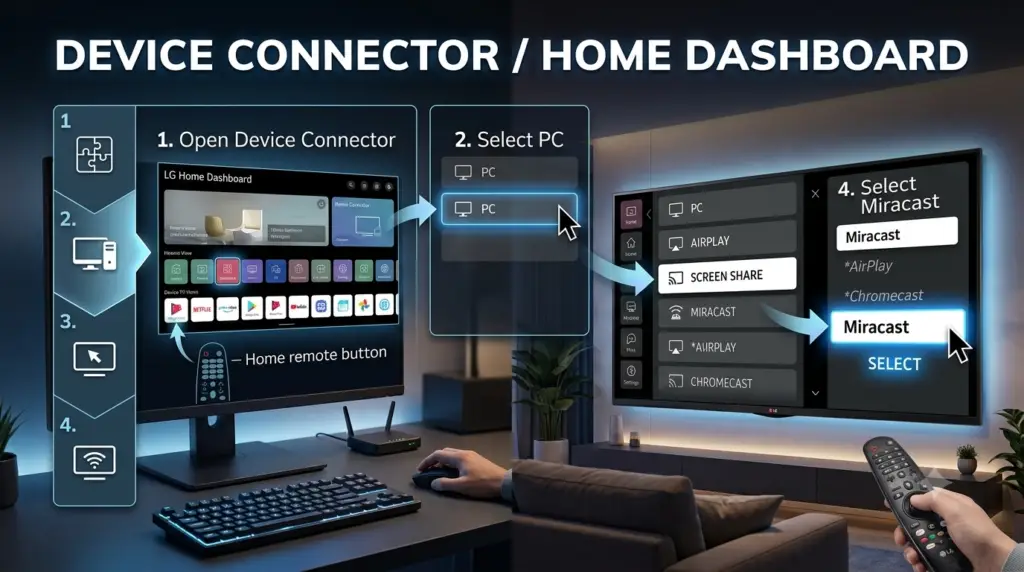
If your LG TV is an older webOS model and doesn’t pair immediately via the shortcut above, you can initiate the connection directly from the TV.
1. Press the Home button on your LG remote.
2.Open the Device Connector app (on some models, this might be called the Home Dashboard).
3.Select PC from the list of device options.
4.Choose Screen Share and then select Miracast.
5.Now, follow Method 1 on your Windows 10 PC (Windows Key + K), and the devices should link instantly.
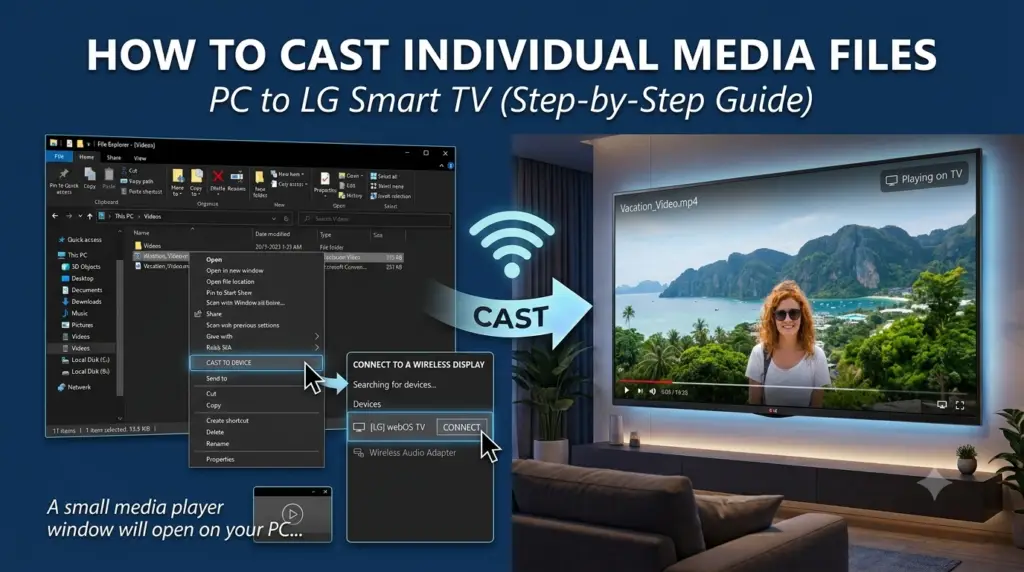
Method 3: Stream Specific Media Files (DlNA Casting)
If you don’t want to show your entire desktop and just want to play a specific video or photo file on your TV, you can use Windows 10’s built-in DLNA casting feature.
1. Open File Explorer on your PC and locate the video or image file.
2.Right-click on the file.
3.Hover over Cast to Device.
4.Select your LG Smart TV from the pop-up list.
5.A small media player window will open on your PC, and the video will instantly begin playing on your TV.
Troubleshooting Common Connection Issues
If your PC refuses to find your LG TV, don’t panic. Try these quick Tier-1 troubleshooting steps to fix the issue:
| Issue | Potential Cause | Quick Fix |
TV not appearing in the list Network mismatch Double-check that your PC isn’t accidentally connected to a “Guest” Wi-Fi network or a mobile hotspot.
Stuttering or Laggy Video Bandwidth congestion Switch both your TV and PC to the 5 GHz Wi-Fi band, or move your router closer to the devices.
“Miracast Not Supported” Error Outdated Drivers Right-click the Windows Start button, open Device Manager, expand Display Adapters, right-click your graphics card, and select Update Driver.
Connection blocks halfway through Firewall interference Your third-party antivirus/firewall might be blocking Wi-Fi Direct. Temporarily disable it to check if it resolves the issue.
Wrapping Up
Streaming your Windows 10 desktop to an LG Smart TV is a seamless experience once you know the shortcuts. For everyday tasks, presentations, or casual viewing, the native Windows Key + K shortcut is your fastest ticket to a bigger screen.
Are you experiencing any lag, or did your TV fail to connect? Let us know in the comments below, and we’ll help you troubleshoot!